
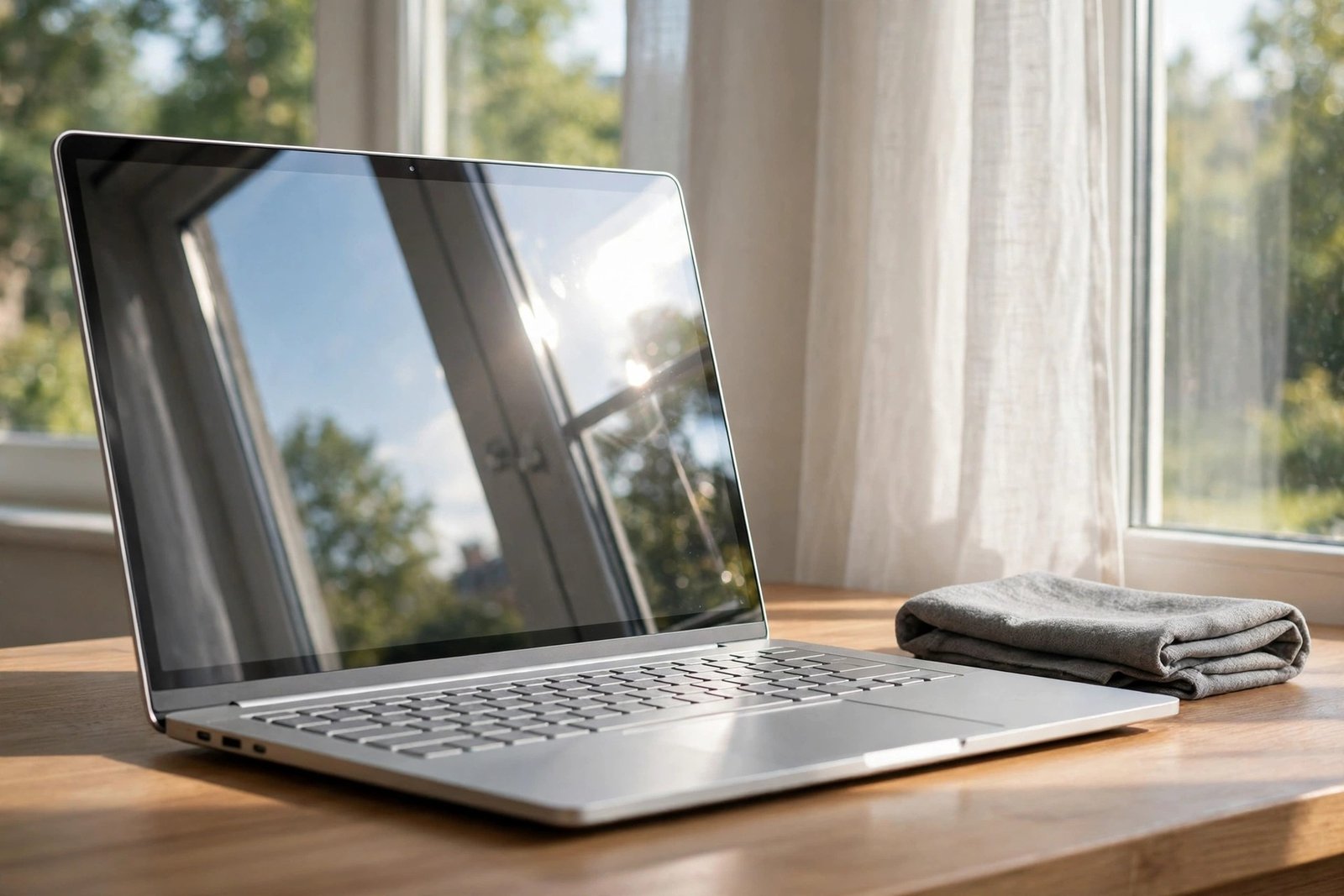
Open a well-used MacBook at a shallow angle and you will often see it straight away: a faint grid of keyboard-shaped marks ghosted across the display, brightest where the spacebar and palm rests sit. It is the most common MacBook screen complaint there is, and it leads naturally to the question — does a MacBook need a screen protector? The honest answer is more cautious than for a phone. A MacBook screen is not touched, swiped or dropped into pockets, yet it faces its own quiet risks, and some of the fixes people reach for can cause more harm than the marks themselves.
This guide works through what actually damages a MacBook display — keyboard contact, coating wear and trapped grit — what Apple itself warns against, and the narrow set of situations where a thin protector film genuinely earns its place.
Key Takeaways
- Most MacBook screen marks come from the keyboard and palm rest pressing into the display when the lid is closed, not from everyday use.
- The anti-reflective coating can wear unevenly if it is rubbed, cleaned harshly, or kept in constant contact with oils and grit.
- Apple designs MacBooks with very tight clearance between keyboard and screen — anything thick fitted to the display or camera area can crack the panel when the lid closes.
- A protector is a reasonable choice if you travel constantly, work in dusty environments, or already see keyboard imprints forming.
- For a desk-based MacBook that is cleaned gently and carried in a padded sleeve, a protector is usually unnecessary.
- Whatever you decide, never fit a thick camera cover and close the lid — that is a well-documented route to a cracked screen.
Why MacBook Screens Pick Up Keyboard Marks
A MacBook is engineered to be thin, and thinness comes at a price: when the lid is closed, the gap between the keys and the display is a fraction of a millimetre. Anything that presses the lid — a heavy bag, books stacked on top, a tight laptop sleeve — pushes the screen down onto the keyboard. The keycaps, the edges of the trackpad well and the palm rest leave oils and fine abrasion exactly where they touch, and over months those contact points print themselves onto the display as a pale, permanent-looking pattern.
Grit makes it worse. A single grain of sand or crumb trapped between keyboard and screen becomes a pressure point, concentrating force onto a tiny area of the panel every time the lid closes. This is why the marks often appear first on machines that live in rucksacks, site cabins, workshops and student bags — anywhere dust and pressure combine.
The Anti-Reflective Coating Problem
Modern MacBook displays carry a delicate anti-reflective coating. It is excellent at cutting glare, but it is softer than the glass beneath it, and it does not enjoy being rubbed. Repeated contact with skin oils, abrasive cloths, or a keyboard pressing into it can wear the coating unevenly, producing cloudy patches that catch the light and look far worse than ordinary fingerprints. Once coating has worn away in a patch, there is no polishing it back — the damage is in the surface itself.
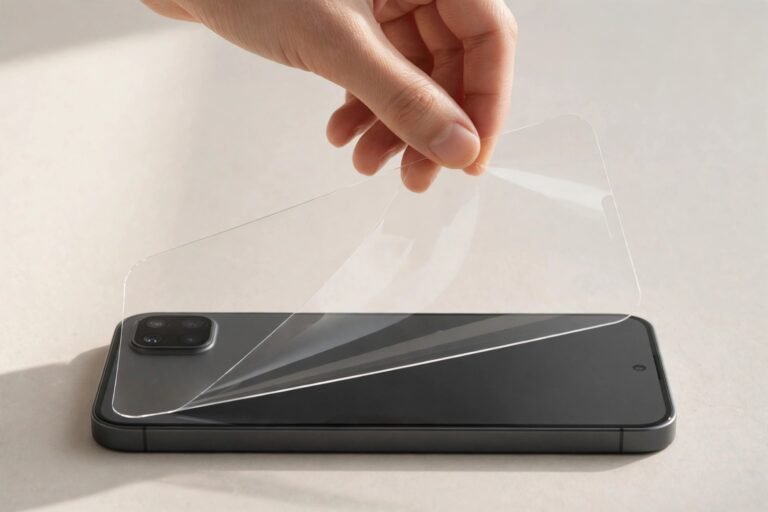
This is where the protector argument gets interesting. A thin film takes the contact instead of the coating: keys press into a replaceable layer, oils sit on plastic rather than on the coating, and if the film clouds, you peel it off and the screen beneath is untouched. The counter-argument is that a badly fitted or overly thick film creates the very clearance problem described below — so if you use one, it must be genuinely thin and made for your exact model.
- Before closing the lid, give the keyboard a quick shake and a wipe — removing one trapped grain of grit prevents the worst pressure marks.
- Carry the MacBook in a padded sleeve inside your bag, not loose against books and chargers pressing on the lid.
Camera Covers and Apple’s Clearance Warnings
Privacy worries push many owners towards a sliding camera cover, and this is where real caution is needed. Apple has warned explicitly that closing a MacBook with a cover fitted over the camera can crack the display, because the clearance between screen and keyboard is engineered to extremely tight tolerances. The same warning covers palm-rest covers and keyboard covers left in place when the lid shuts. A crack caused this way is not a theoretical risk — repairers see it regularly, and it is an expensive lesson.
The safer privacy habits cost nothing: the green indicator light beside the camera is wired to show whenever the camera is active, camera access is controlled per app in the system settings, and if you want a physical cover, remove it before the lid closes. Screen protectors fall under the same logic: an ultra-thin film is within tolerance for most models, but anything with noticeable thickness, a raised frame or adhesive pads near the edges should not be closed inside the machine.
When a Protector Makes Sense — and When It Does Not
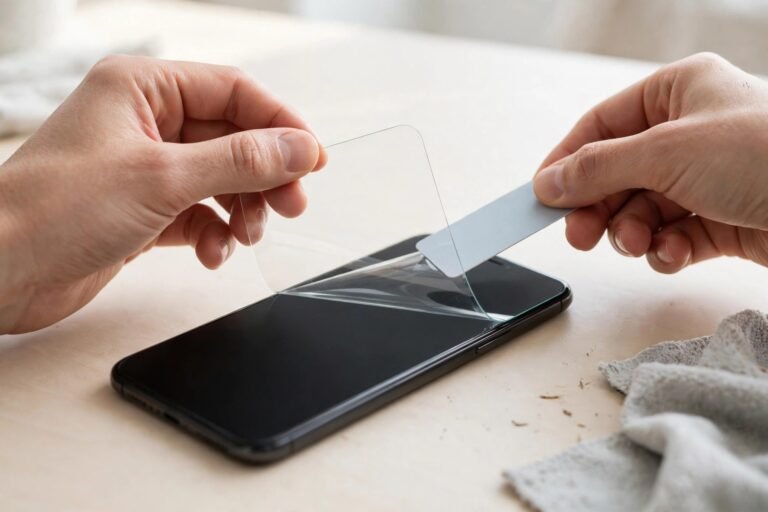
A protector earns its place if your MacBook travels daily, works in dusty or outdoor environments, is used by children, or has already started showing keyboard imprints you want to stop getting worse. It also suits anyone who cleans their screen often, because the film absorbs the friction instead of the coating. Choose the thinnest film made for your exact model, fit it carefully, and think of it as a sacrificial layer, replaced when it clouds.
If your MacBook lives on a desk, is opened and closed gently, travels in a proper sleeve and is cleaned with a soft, dry microfibre cloth, the case is much weaker. You would be adding reflections and a slight softening of a very sharp display to guard against risks your routine barely presents. On balance, our verdict leans cautious: most MacBook owners do not need one, but heavy travellers and anyone seeing early keyboard marks are the exceptions — and nobody should ever close the lid on a thick camera cover.
- Clean the screen only with a soft, dry or very slightly damp microfibre cloth — never household glass cleaners, solvents or paper towels on the coating.
- If keyboard marks are appearing, a sheet of microfibre laid over the keyboard before closing the lid for transport cushions the contact without adding a layer.
Frequently Asked Questions
Can a screen protector damage my MacBook screen?
A thin, correctly fitted film is very unlikely to cause harm. The dangers come from thickness and residue: anything that reduces the already tiny lid clearance can press into the panel, and cheap adhesives can pull at the anti-reflective coating when removed. Keep it thin, model-specific, and remove it slowly if you ever take it off.
Will a protector stop keyboard marks completely?
It stops them reaching the screen itself, because the keys press into the film instead. The film may eventually show the same pattern — that is it doing its job — and replacing a worn film is far simpler than living with a marked coating.
Is a camera cover a good alternative for privacy?
Only if you remove it before closing the lid, every time. A cover left in place is a recognised cause of cracked MacBook displays because of the tight clearance Apple designs to. Relying on the camera indicator light and the per-app camera permissions in settings gives you privacy protection without the mechanical risk.
A MacBook does not face a phone’s daily battering, but its screen quietly collects keyboard marks and coating wear — protect it if you travel hard, skip it if you work gently, and never close the lid on anything thick.